
Use the AI Studio Agent to create new screens or update existing ones—without manually working in the dashboard editor.
Anything you can build or modify in the dashboard, the AI Studio Agent can handle for you through prompts, helping you move faster and streamline your workflow.
Examples of What You Can Do
- Create new screens or landing pages
- Add, edit, or remove sections
- Update layouts and featured content
- Swap products or collections
How It Works
- Open the screen you want to update in your Reactiv dashboard.
- To create a new page, create the page first, then launch the AI Studio Agent.
- Click the AI Studio Agent icon to start a conversation.
- Describe what you want to build or change, be descriptive to get the best results.
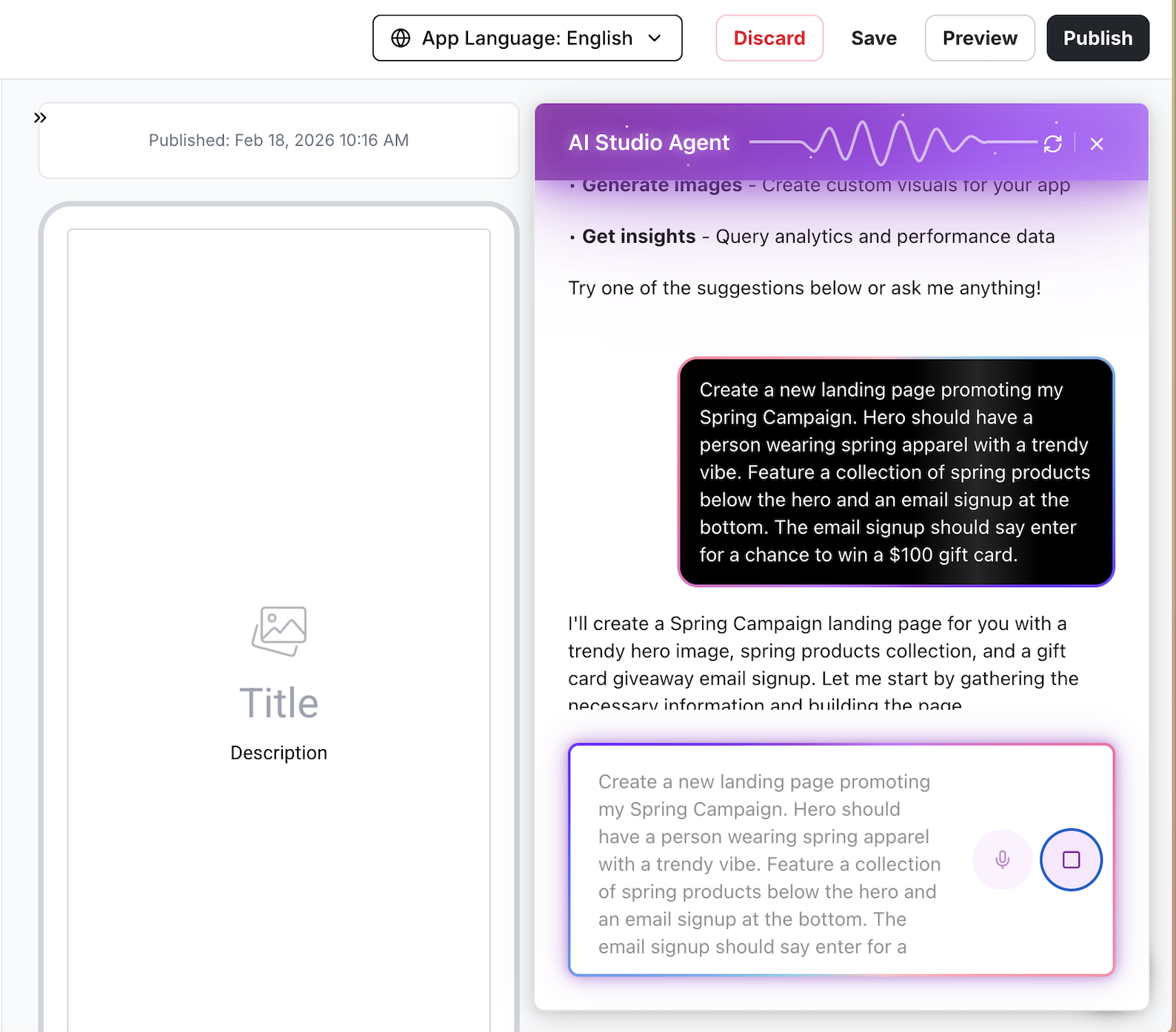
- The agent begins working, this may take a few moments.
- Tip: do not refresh the page while processing.
- Review the proposed changes.
- Choose one of the following:
- Save to apply the updates.
- Continue the conversation with the AI Builder and request adjustments (entire page, specific sections, or visuals).
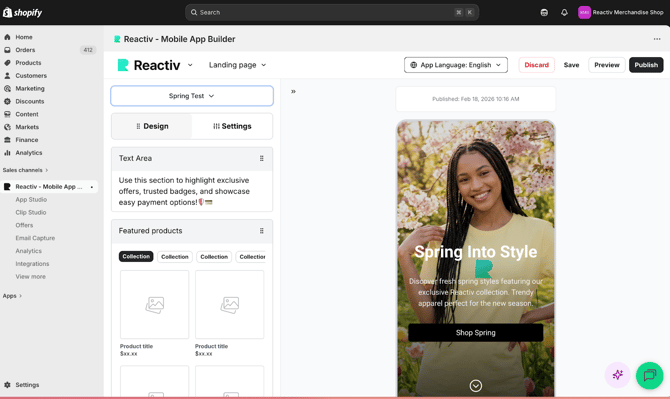
Example Prompts
- “Build a landing page featuring products from my New This Week collection.”
- “Update my home screen to feature my best-selling collection.”