Skip to content
English - Canada
  • There are no suggestions because the search field is empty.

Customize Collection Settings | Reactiv Support Center

Copyright (c) 2023, Intercom, Inc. ([email protected]) with Reserved Font Name "Inter". This Font Software is licensed under the SIL Open Font License, Version 1.1.Copyright (c) 2023, Intercom, Inc. ([email protected]) with Reserved Font Name "Inter". This Font Software is licensed under the SIL Open Font License, Version 1.1. Table of contents Customize Collection Settings

Customize Collection Settings

Manage how your product collections display in the app to keep layouts clean and user-friendly.

Written by Reactiv App
Updated over 6 months agoReactiv App Table of contents

How to Access Collection Settings

  1. Log in to your Shopify admin dashboard.

  2. In the left-hand sidebar, scroll to the Sales Channels section.

  3. Click Reactiv – Mobile App Builder, then select App Studio.

  4. Click your company logo at the top of the page and select App Settings.

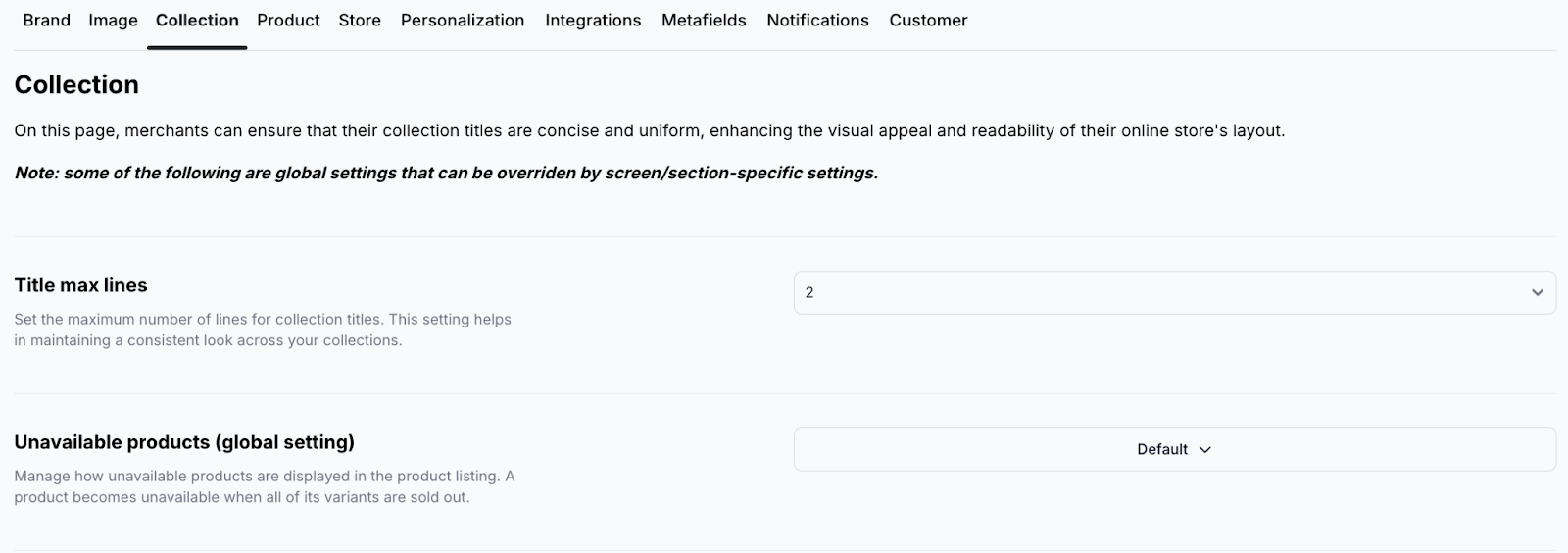
  5. From the top menu, click Collection.

Log in to your Shopify admin dashboard.

In the left-hand sidebar, scroll to the Sales Channels section.

Click Reactiv – Mobile App Builder, then select App Studio.

Click your company logo at the top of the page and select App Settings.

From the top menu, click Collection.

Available Settings

Title Max Lines

Set how many lines of text can appear for collection titles.

  • Helps keep titles concise and layouts uniform.

  • Example: Set to 2 lines to prevent long names from disrupting alignment.

Helps keep titles concise and layouts uniform.

Example: Set to 2 lines to prevent long names from disrupting alignment.

Unavailable Products (Global Setting)

Control how sold-out products display in collection lists:

  • Default – Show in place based on their original sort order.

  • Hidden – Do not show unavailable products at all.

  • Bottom – Push unavailable products to the end of the list.

Default – Show in place based on their original sort order.

Hidden – Do not show unavailable products at all.

Bottom – Push unavailable products to the end of the list.

Choose the option that fits your store’s merchandising strategy.

Pagination Limit

Set how many products to show per page in a collection.

  • Keeps large collections easy to browse.

Keeps large collections easy to browse.

Example: A value of 10 will show 10 products per page, with pagination controls automatically added.

Did this answer your question?😞😐😃