
What is the Health screen?
The Health screen is a catalog verification tool in the Reactiv Dashboard. It scans your app's configuration and confirms that each referenced product and collection is still available and published in Shopify, then flags anything that's missing so it can be re-pointed or removed.
Prerequisites
-
An active Reactiv app installed on your Shopify store
-
A published configuration to check (Source, Preview, or Live)
-
The Health feature enabled on your account
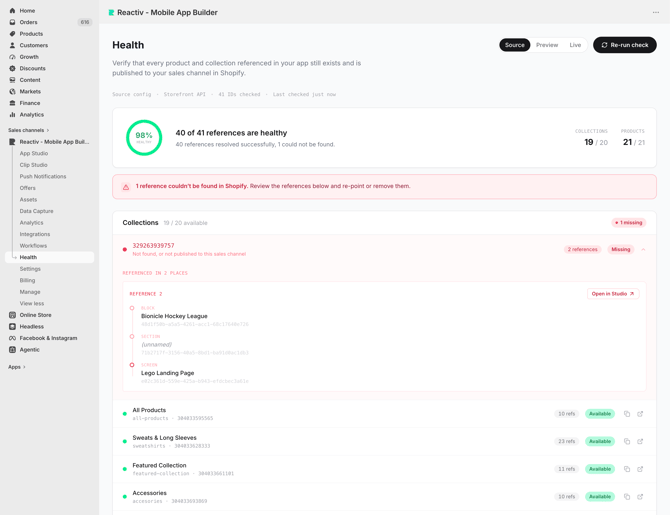
How to use the Health screen
-
In the Reactiv Dashboard, open Health in the navigation from the side left menu.
-
Choose the configuration you want to check using the Source, Preview, or Live tabs. Source is selected by default.
-
Review your health score at the top — the percentage of references that resolved successfully (green ≥ 90%, amber 50–89%, red below 50%).
-
Check the Collections and Products breakdowns to see how many references are available out of the total checked.
-
Expand any item marked Missing to see exactly where it's referenced in your app and take action.
-
Once you've made fixes, select Re-run check to verify your changes. No new app build is required.
What you'll see
-
Health score — an at-a-glance ring showing the percentage of healthy references.
-
Summary — "X of Y references are healthy," with counts of references resolved and references that couldn't be found.
-
Resource breakdown — Collections and Products, each shown as available / total.
-
Details strip — which configuration was checked, the verification engine, total IDs checked, and when it was last checked.
Reviewing missing references
Each missing item shows its ID, the status "Not found, or not published to this sales channel," and how many places in your app reference it. Expand it to see the full path — Block → Section → Screen — so you know exactly where the reference lives.
Fixing an issue
For any missing reference you can:
-
Open in Studio to jump straight to the exact location in App or Clip Studio where the reference is used.
-
Open in Shopify Admin to view the product or collection directly.
-
Copy ID to grab the reference ID for your own search or records.
After updating or removing a reference, select Re-run check to confirm it's resolved.
Checking Source, Preview & Live
Each configuration is checked independently:
-
Source — your work-in-progress config from the dashboard, including the latest edits you haven't previewed or published yet.
-
Preview — the config behind your preview build, for checking changes on a device before publishing them live.
-
Live — the config currently published to your production mobile app or Reactiv Clip; this is what shoppers see now.
Re-running the check
The Health screen reflects the moment it was last run. After fixing references — or any time you want a fresh result — select Re-run check to verify the current state of the selected configuration.