
Introduction
Enhance your Reactiv mobile app Search and Product Collections with Marqo. When enabled, Marqo will power product ordering in search results and collections, as well as sorting and filtering in search results and collections.
Prerequisites
Marqo Account - Marqo is enabled on your online store. Contact Marqo for assistance with online store setup
Integration Credentials - Open the Marqo App or log into the Marqo Dashboard and obtain the following:
- Index Name - Name of the Marqo index for your store
- Index ID - Marqo index identifier used to authenticate requests
- Pixel API Key - Your Marqo Pixel API key
- Pixel Customer ID - Your Marqo customer identifier
Step-by-Step Setup
Step 1: Enable Marqo Integration
-
Log in to your Reactiv dashboard and navigate to the Integrations page.
-
Find Marqo under the Discovery, Search & Personalization section.
-
Click on the Connect button to start the setup
-
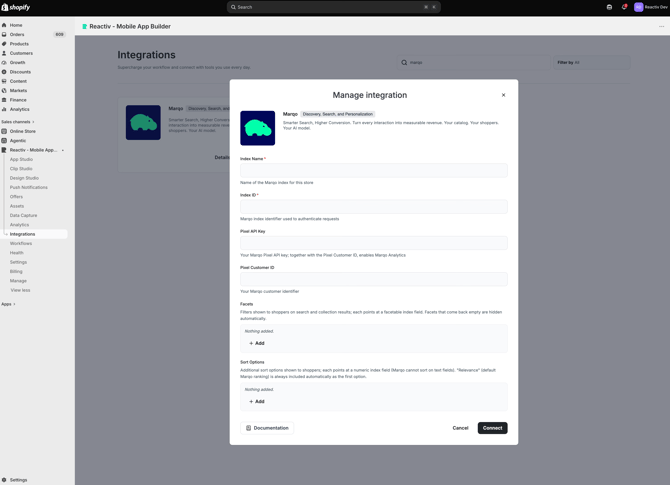
Enter your Marqo Index Name & Index ID
- (Optional) Enter your Marqo Pixel API Key & Pixel Customer ID to enable Marqo Analytics
- (Optional) Configure your Facets. These are filters shown to shoppers on search and collection results; each points at a facetable index field. Facets that come back empty are hidden automatically.
- (Optional) Configure your Sort Options. These are additional sort options shown to shoppers; each points at a numeric index field (Marqo cannot sort on text fields). "Relevance" (default Marqo ranking) is always included automatically as the first option.
-
Click Connect
Step 2: Set Marqo as Provider
-
In the Reactiv Dashboard, click your store logo to open App Settings in the App Studio.
-
Navigate to Integrations.
-
Under Discovery, Search, and Personalization, select Marqo as your provider.
-
Click Save.
Once enabled, Marqo will power your app’s search and collections.
Step 3: Verify the Integration
- Before publishing your app update, thoroughly test the Marqo integration in the preview app.
- Ensure that search results and collections match your setup, as well as filters and sorting options.
Troubleshooting
If you encounter issues during the setup, please contact our support team via chat or email.
📝 Always save and publish your work in the dashboard before checking the mobile app.