
 Written by Reactiv App
Introduction
Enhance your Reactiv mobile app by integrating Okedno, a powerful loyalty and rewards platform. This guide will walk you through the setup process to offer your customers loyalty points, rewards, and more within your app.
Prerequisites
1. Reactiv Account: Ensure you have an active Reactiv account.
2. Okendo Account: Set up a Okendo account and configure your loyalty program.
Step 1: Access the Integration Settings
-
Log in to your Reactiv dashboard.
-
Navigate to the Integrations page.
Step 2: Enable Okendo Integration
-
In the Integrations page, find Okendo under Loyalty section.
-
Click on the Connect button to start the setup.

Step 3: Connect Okendo to Your Mobile App
- In the Okendo integration popup, you will see a field for the User ID.
- Obtain your User Id (steps in the below green callout box)
- Paste the User Id into the User Id field in the Reactiv integration popup and click Connect.
- Once saved, Okendo will be connected to Reactiv.
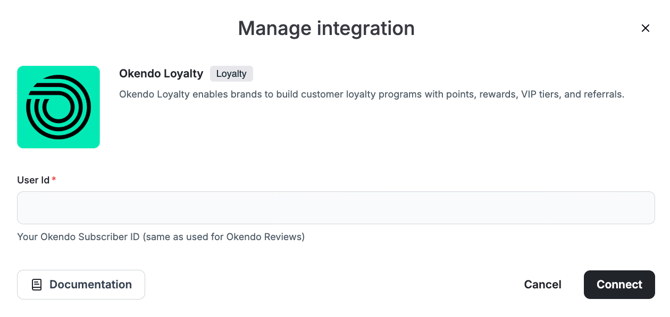
Obtaining your User ID from Okendo
Step 1: Log In to Okendo
-
Go to the Okendo login page.
-
Sign in with your Okendo admin credentials.
Step 2: Navigate to the User Management Section
-
Once logged in, click on your account name or profile icon at the top-right corner of the dashboard.
-
Go to Account Settings or look for a section like Users or Team Members, depending on how Okendo’s interface is structured for your account.
Step 3: Find Your User ID
-
In the Users or Team Members section, you should see a list of users associated with your Okendo account.
-
Your User ID (or unique identifier) may be visible next to your name or profile in this list.
-
If not, click on your profile or username to access more details, where the User ID might be displayed in your user information.
Step 4: Contact Okendo Support (if needed)
-
If you are unable to find your User ID or need further assistance, you can reach out to Okendo's support team. They can help guide you to the specific user details you are looking for.
Step 4: Set Okendo as the Loyalty Provider
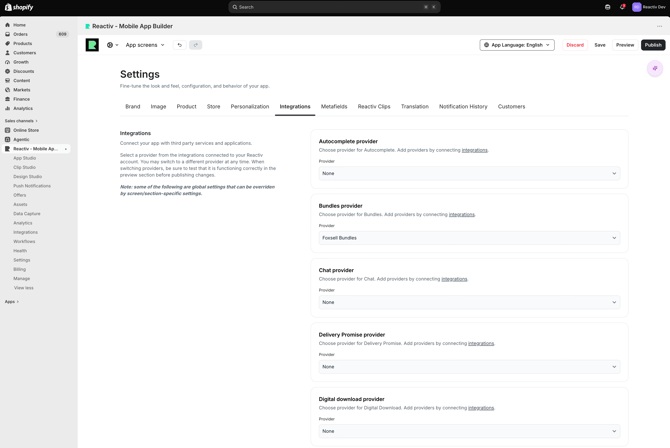
- On the Reactiv Dashboard, navigate to Settings then click on the Integrations Tab
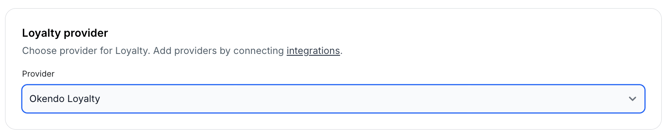
- Set Okendo as the Loyalty provider and Save
Step 5: Verify the Integration
-
Before publishing your app update, thoroughly test the Okendo integration in the preview app.
-
Ensure that points are being accrued and displayed correctly, rewards are redeemable.
Troubleshooting
If you encounter issues during the setup, please contact our support team via chat or email.