
Prerequisites
Before setting up ParcelLab Tracking integration, ensure the following:
- You have an active parcelLab Tracking account
- You are signed up for a Reactiv Plan.
- Your Reactiv Mobile App is already set up and functioning.
Step 1: Access the Integrations Page
- Log in to your Shopify admin dashboard.
- In the left-hand menu, locate Reactiv - Mobile App Builder under the "Sales channels" section.
- Click on Reactiv - Mobile App Builder to open the Reactiv dashboard.
- Select Integrations from the sidebar.
Step 2: Locate parcelLab Tracking
- On the Integrations page, use the search bar or scroll to find parcelLab Tracking using the search bar.
- Click the Connect button next to parcelLab Tracking to access the integration settings.
Step 3: Connect parcelLab Tracking to Your Mobile App
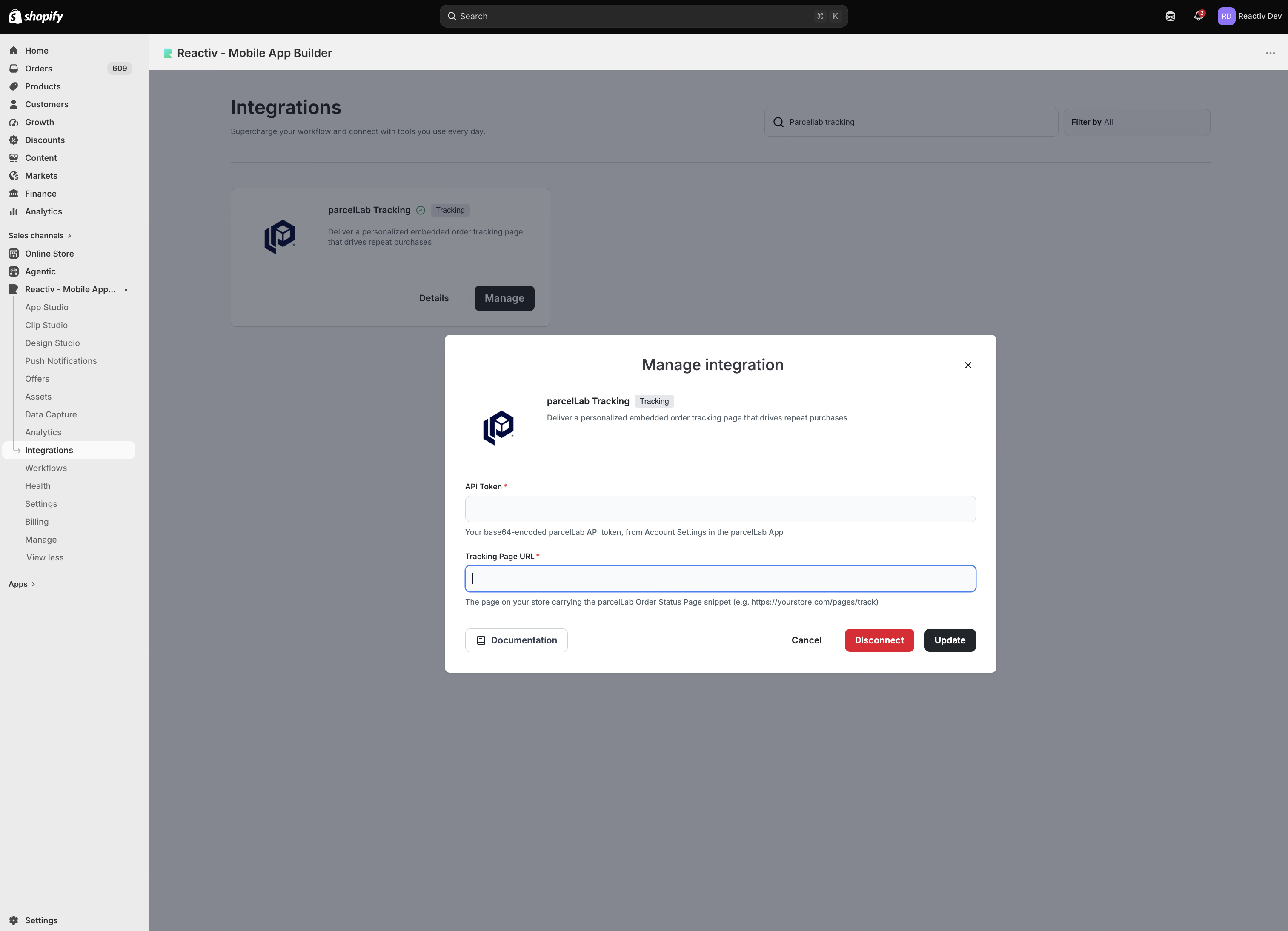
- In the parcelLab Tracking integration popup, you will see a field for the App Token.
- Obtain your API Access Token from Account Settings parcelLab Account (your base64-encoded parcelLab API token). Refer to this guide from parcelLab.
- Paste the API Access Token into the API Token field in the Reactiv integration popup.
- Enter your Tracking Page URL. This is the page on your store carrying the parcelLab Order Status Page snippet (e.g. https://yourstore.com/pages/track)
- Click Connect/Update and parcelLab Tracking will be connected to Reactiv.

Step 4: Set parcelLab Tracking as the Tracking provider
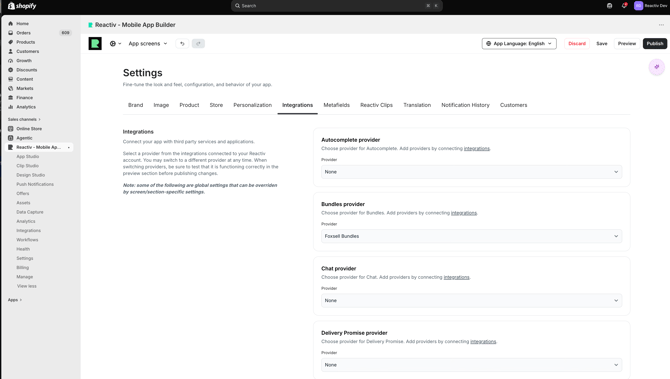
- On the Reactiv Dashboard, navigate to Settings then click on the Integrations tab.
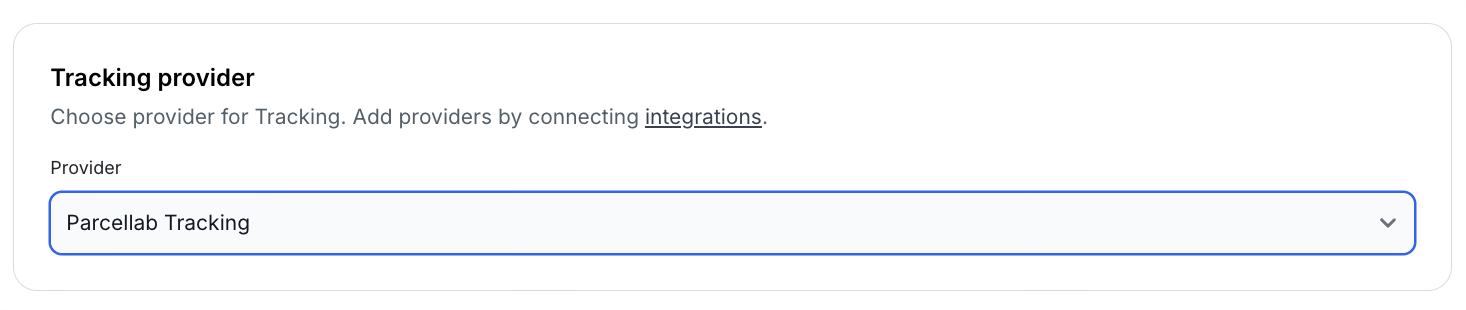
- Set parcelLab Tracking as the Tracking provider and Save
Step 5: Verify the Integration
- Before publishing your app update, thoroughly test the parcelLab Tracking integration in the preview app.
- Ensure that a track order button appears on all eligible orders in the App Order History Screen.
Troubleshooting
If you encounter issues during the setup, please contact our support team via chat or email.
📝 Always save and publish your work in the dashboard before checking the mobile app.