
Before You Begin
This feature uses Shopify metafields to set quantity limits at either the product level or the variant level. You'll need to create these metafields in Shopify Admin before configuring them in your Reactiv Dashboard.
Step 1: Create Your Metafields in Shopify Admin
In your Shopify Admin, create the following metafields:
- A Minimum Quantity metafield
- A Maximum Quantity metafield
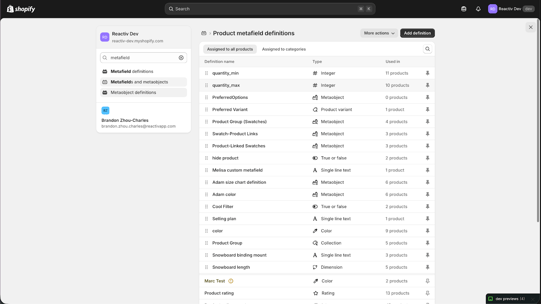
You can create these at the product level, the variant level, or both — depending on how granular you'd like your limits to be. You don't need to set both; a minimum-only or maximum-only configuration is perfectly valid.
Once created, assign values to the relevant products or variants:
For product-level metafields:
- Go to the product in Shopify Admin.
- Scroll down to the Metafields section.
- Find your minimum and maximum metafields.
- Enter your desired values.
For variant-level metafields:
- Go to the product and select the specific variant.
- Scroll down to the Metafields section.
- Find your minimum and maximum metafields.
- Enter your desired values.
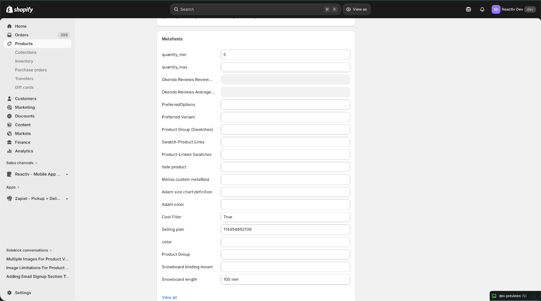
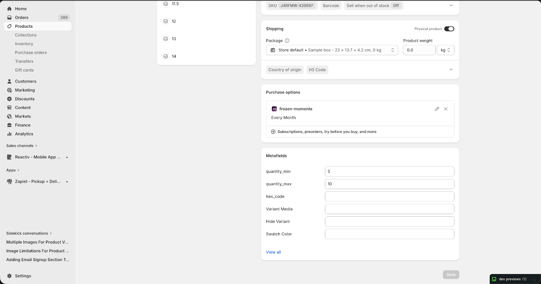
📝 You will need to make sure that your new metafields are available to the Storefront API, by toggling that setting in your metafields admin in Shopify.
Step 2: Expose Your Metafields in the Reactiv Dashboard
- In the Reactiv Dashboard, go to App Settings > Metafields.
- Find your minimum and maximum metafields.
- Toggle them on to make them available to the app.
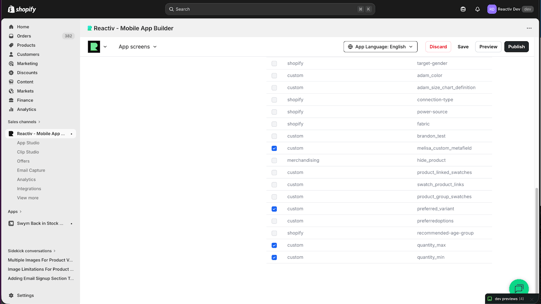
Step 3: Configure Quantity Limits in the Reactiv Dashboard
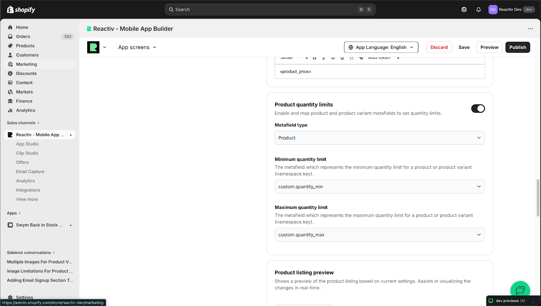
- Go to App Settings > Product.
- Scroll to the Product Quantity Limits section.
- Enable the toggle to reveal the configuration fields.
- Under Metafield Type, select whether your limits are set at the Product or Variant level.
- Use the dropdowns to map your minimum and maximum metafields.
- Click Save and publish your configuration.
Optional — Fallback Metafields: If you're using variant-level limits, you can also set product-level metafields as a fallback. Toggle on Fallback Metafields and select the appropriate metafields if you'd like this behavior.
How Quantity Limits Work
Once configured, the quantity stepper on your storefront will automatically enforce your limits.
Minimum quantity: The customer cannot add fewer items than the minimum value you've set. If no minimum is configured, it defaults to 1.
Maximum quantity: The stepper compares your maximum metafield value against the variant's available inventory and uses whichever is lower. If no maximum is configured, it defaults to available inventory.
Product-level limits apply uniformly across all variants of that product.
Variant-level limits apply individually to each variant based on that variant's metafield values.
Fallback Logic (Variant Metafield Type Only)
If variant-level limits aren't set for a given variant, the app will fall back to any product-level limits you've configured. Here's how the fallback behaves:
- If a variant has no minimum set, the product-level minimum will be used.
- If a variant has no maximum set, the product-level maximum will be used.
- If the product-level fallback minimum is higher than the variant-level maximum, the fallback minimum is ignored.
- If the product-level fallback maximum is lower than the variant-level minimum, the fallback maximum is ignored.
Example: A variant has a minimum of 10 and no maximum set. The product-level fallback has a minimum of 2 and a maximum of 6. Because the variant minimum (10) exceeds the product-level maximum (6), the product-level maximum is ignored and the effective maximum becomes the variant's available inventory.
💾 Always remember to Save before Publishing your work.