Skip to content
English - Canada
  • There are no suggestions because the search field is empty.

Setting Up a Recharge Integration | Reactiv Support Center

Copyright (c) 2023, Intercom, Inc. ([email protected]) with Reserved Font Name "Inter". This Font Software is licensed under the SIL Open Font License, Version 1.1.Copyright (c) 2023, Intercom, Inc. ([email protected]) with Reserved Font Name "Inter". This Font Software is licensed under the SIL Open Font License, Version 1.1. Table of contents Setting Up a Recharge Integration

Setting Up a Recharge Integration

This guide will help you integrate Recharge for product subscriptions with your Reactiv Mobile App.

Written by Reactiv App
Updated over 11 months agoReactiv App Table of contents

Prerequisites

Before setting up the Recharge integration, ensure the following:

  • You have an active Recharge account with active product subscriptions

  • Your Reactiv Mobile App is already set up and functioning.

You have an active Recharge account with active product subscriptions

Your Reactiv Mobile App is already set up and functioning.

Step 1: Access the Integrations Page

  1. Log in to your Shopify admin dashboard.

  2. In the left-hand menu, locate Reactiv - Mobile App Builder under the "Sales channels" section.

  3. Click on Reactiv - Mobile App Builder to open the Reactiv dashboard.

  4. Select Integrations from the sidebar.

Log in to your Shopify admin dashboard.

In the left-hand menu, locate Reactiv - Mobile App Builder under the "Sales channels" section.

Click on Reactiv - Mobile App Builder to open the Reactiv dashboard.

Select Integrations from the sidebar.

Step 2: Locate Recharge

  1. On the Integrations page, use the search bar to find Recharge or use the category dropdown under "Subscriptions".

  2. Click the Connect button next to Recharge to access the integration settings.

On the Integrations page, use the search bar to find Recharge or use the category dropdown under "Subscriptions".

Click the Connect button next to Recharge to access the integration settings.

Step 3: Connect Recharge to Your Mobile App

  1. In the Recharge integration popup, you will see a field for the Recharge API token

  2. Obtain the necessary field

  3. Paste the appropriate information within the field in the Reactiv integration popup.
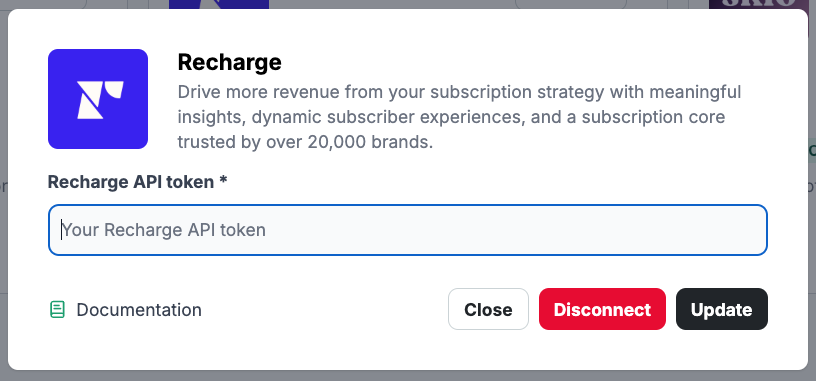
In the Recharge integration popup, you will see a field for the Recharge API token

Obtain the necessary field

Paste the appropriate information within the field in the Reactiv integration popup.

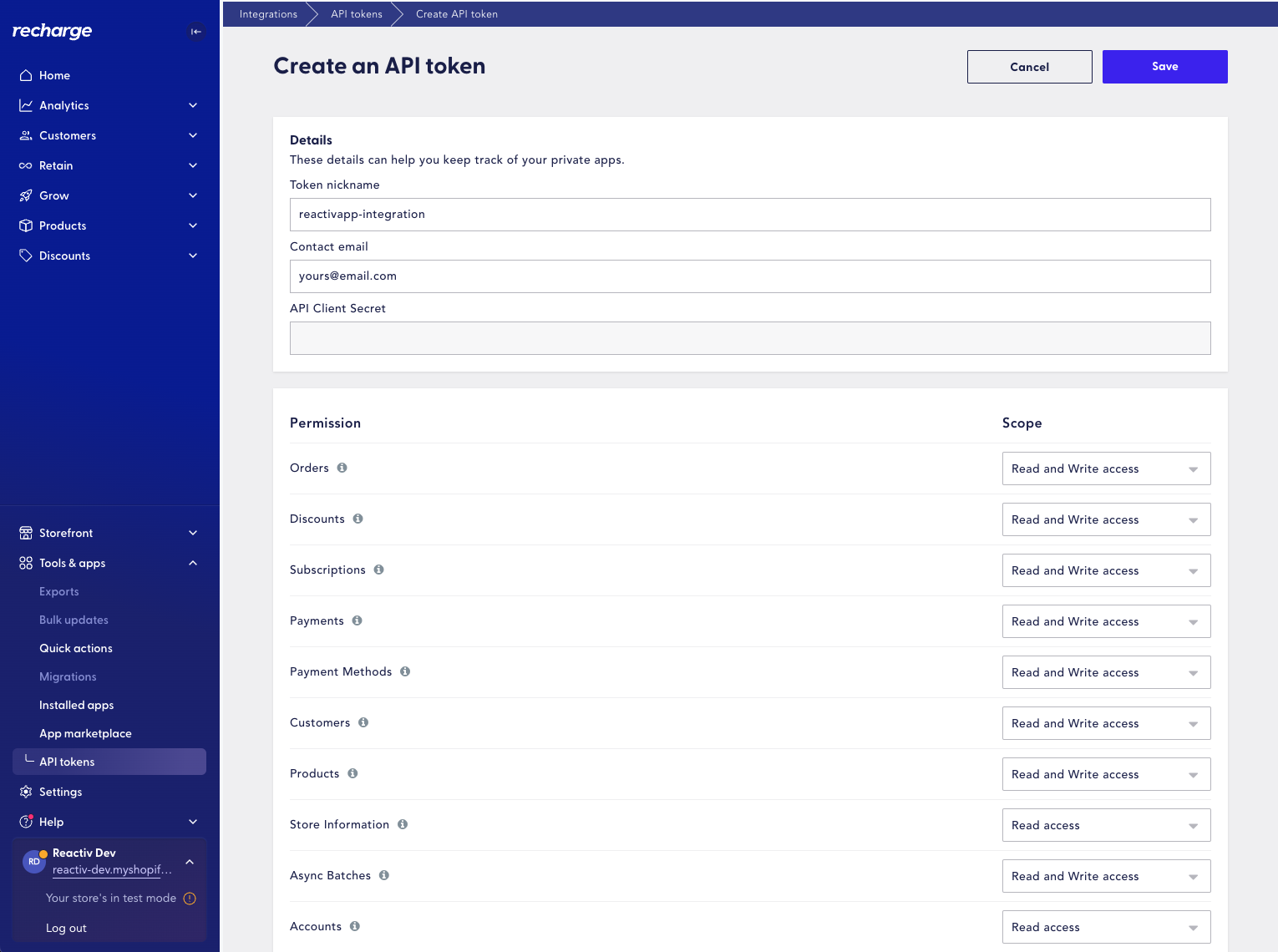
1. API token:

Generate a new API token for your Recharge account:

  1. Log in to your Recharge dashboard.

  2. Go to the "Tools & apps" dropdown and click on "API tokens".

  3. Click "Create an API token"

  4. Give your token a name e.g. reactivapp-integration

  5. Enter your company email address

  6. Provide the correct permissions:

    1. Orders - Read and Write access

    2. Discounts - Read and Write access

    3. Subscriptions - Read and Write access

    4. Payments - Read and Write access

    5. Payment Methods - Read and Write access

    6. Customers - Read and Write access

    7. Products - Read and Write access

    8. Store Information - Read access

    9. Async Batches - Read and Write access

    10. Accounts - Read access

  7. Check the box to agree with Recharge's API Terms of Service.

  8. "Save" and create your new token

Log in to your Recharge dashboard.

Go to the "Tools & apps" dropdown and click on "API tokens".

Click "Create an API token"

Give your token a name e.g. reactivapp-integration

Enter your company email address

Provide the correct permissions:

  1. Orders - Read and Write access

  2. Orders - Read and Write access

  3. Discounts - Read and Write access

  4. Discounts - Read and Write access

  5. Subscriptions - Read and Write access

  6. Subscriptions - Read and Write access

  7. Payments - Read and Write access

  8. Payments - Read and Write access

  9. Payment Methods - Read and Write access

  10. Payment Methods - Read and Write access

  11. Customers - Read and Write access

  12. Customers - Read and Write access

  13. Products - Read and Write access

  14. Products - Read and Write access

  15. Store Information - Read access

  16. Store Information - Read access

  17. Async Batches - Read and Write access

  18. Async Batches - Read and Write access

  19. Accounts - Read access

  20. Accounts - Read access

    Check the box to agree with Recharge's API Terms of Service.

    "Save" and create your new token

    Step 4: Save the Integration

    1. After entering your information, click the Connect/Update button to save the integration.

    2. Once saved, Recharge will be connected to Reactiv.

    After entering your information, click the Connect/Update button to save the integration.

    Once saved, Recharge will be connected to Reactiv.

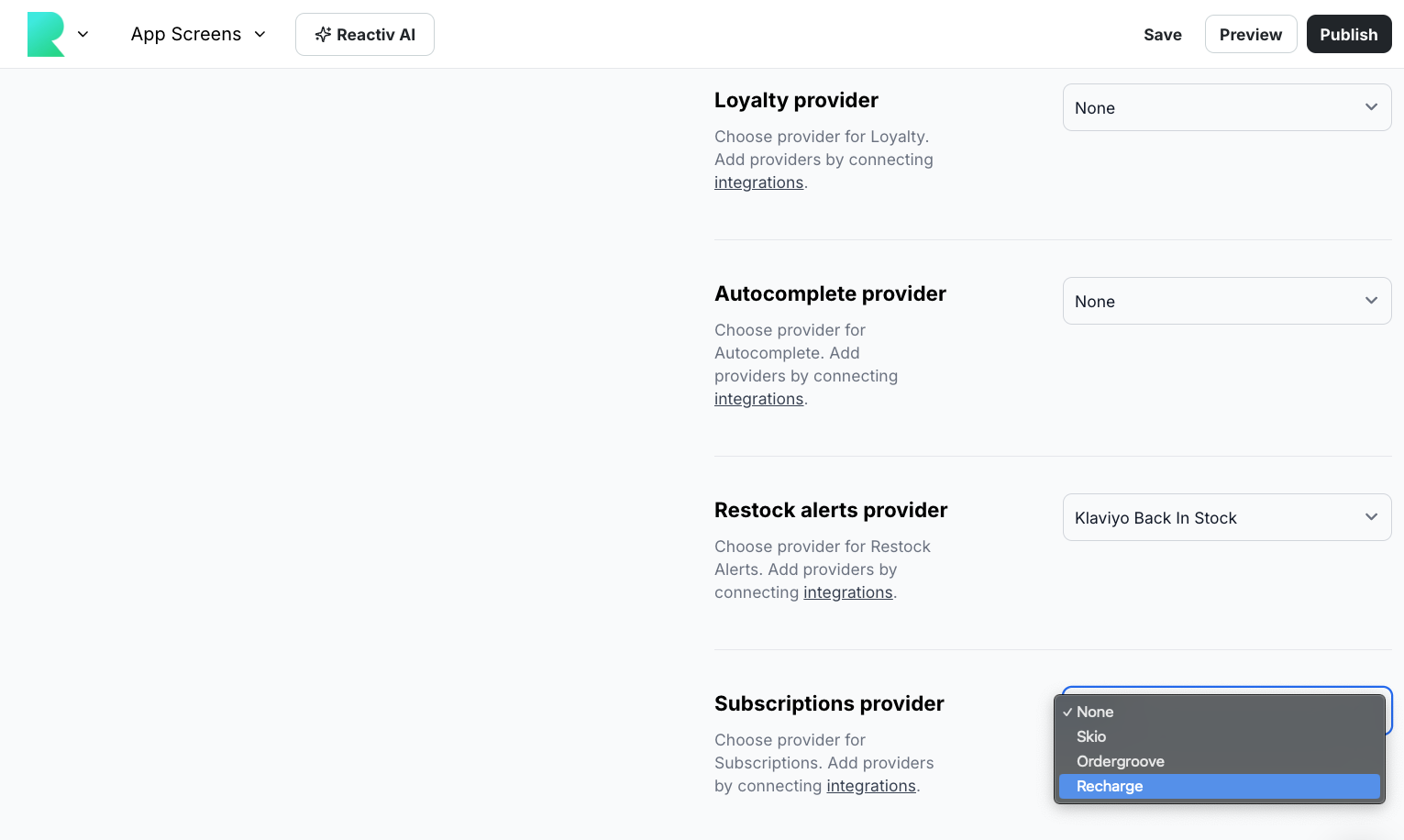
    Step 5: Add Subscriptions to Mobile

    1. Navigate to App Studio > Account Settings > Integrations tab

    2. Scroll to the Subscriptions Provider Section

    3. From the Dropdown, select Recharge

    4. Once complete, click Save & Publish

    Navigate to App Studio > Account Settings > Integrations tab

    Scroll to the Subscriptions Provider Section

    From the Dropdown, select Recharge

    Once complete, click Save & Publish

    Step 6: Verify the Integration

    1. If any issues arise, recheck the Recharge settings and make sure to Save the settings correctly.

    If any issues arise, recheck the Recharge settings and make sure to Save the settings correctly.

    Limitations

    • N/A

    N/A

    Troubleshooting

    • Invalid Recharge API token: Ensure that you have correctly copied the Recharge API token from your Recharge dashboard.

    Invalid Recharge API token: Ensure that you have correctly copied the Recharge API token from your Recharge dashboard.

    For more detailed information on managing and customizing your subscriptions, please refer to your account manager at Recharge.

    Did this answer your question?😞😐😃