
Prerequisites
Before setting up Redo integration, ensure the following:
- You have an active Redo account with access to the API key.
- You are signed up for a Reactiv Plan.
- Your Reactiv Mobile App is already set up and functioning.
Step 1: Access the Integrations Page
- Log in to your Shopify admin dashboard.
- In the left-hand menu, locate Reactiv - Mobile App Builder under the "Sales channels" section.
- Click on Reactiv - Mobile App Builder to open the Reactiv dashboard.
- Select Integrations from the sidebar.
Step 2: Locate WeSupply Returns
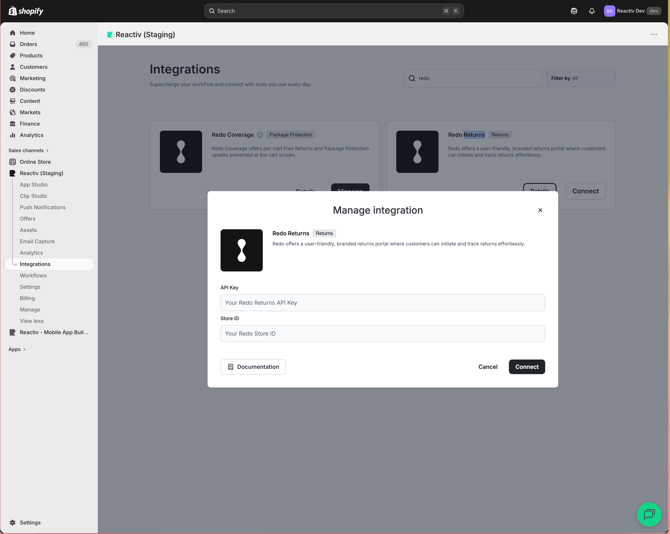
- On the Integrations page, use the search bar or scroll to find Redo Returns using the search bar.
- Click the Connect button next to Redo Returns to access the integration settings.

Step 3: Connect Redo Returns to Your Mobile App
- In the WeSupply integration popup, you will see a field for the App Key.
- Obtain your App Key by following this guide from Redo Returns.
- Paste the App Key into the App Key field in the Reactiv integration popup.

Step 4: Save the Integration
- After entering your App Key, click the Connect/Update button to save the integration.
- Once saved, Redo Returns will be connected to Reactiv.
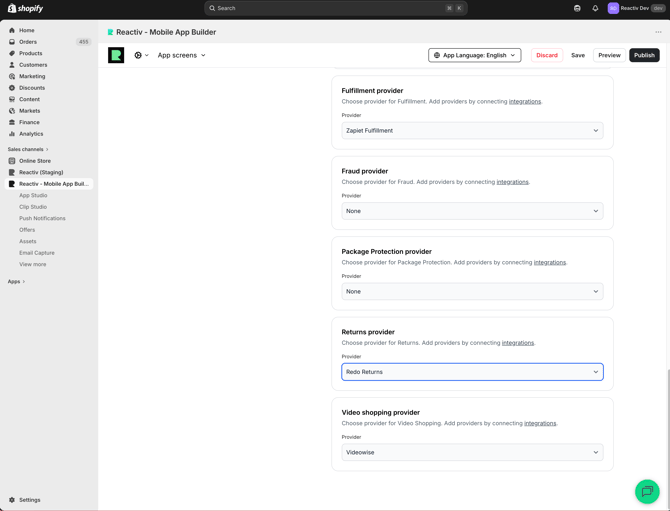
📝 Always save and publish your work in the dashboard before checking the mobile app.