
What Is the Store Locator Screen?
The Store Locator screen lets shoppers discover your physical store locations without leaving your app. They can browse your stores on a map, see which one is closest, view store hours and phone numbers, and tap through for directions.
It is a great fit for brands with brick and mortar stores, pickup locations, or any physical presence you want shoppers to know about. The Store Locator turns your app into a helpful way-finder, which often leads to more in-store visits and happier customers.
Where the Store Locator Appears
Once Store Locator is turned on, a “Find a Store” tile shows up on your Account screen by default. The tile shows a quick count of how many locations you have, like “12 locations,” so shoppers know there is something to explore.
When a shopper taps the tile, they are taken to the full Store Locator screen with the map, location list, and store details.
You can also link to the Store Locator from other spots in your app to give shoppers more ways to discover it. More on that below.
Shopify Setup Prerequisites
The Store Locator pulls your store information directly from Shopify, so you will set up your locations in your Shopify admin before turning the feature on in Reactiv. Here is what needs to be in place for each store you want to show up:
- The location must exist in Shopify. Add each physical store as a location in Settings, then Locations in your Shopify admin.
- The location must have a status of Active. Inactive or archived locations will not appear in the Store Locator.
- The location must be marked as a Physical Storefront. This tells Shopify (and Reactiv) that the location is a real store shoppers can visit, not a warehouse or fulfillment-only site.
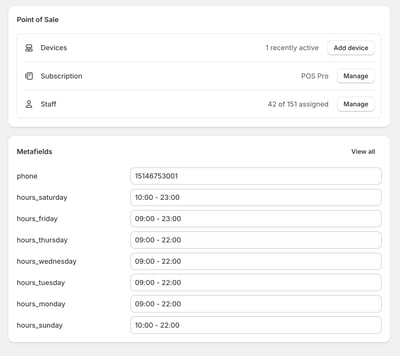
- Hours and phone number must be added to each location as Location Metafields. Reactiv reads these details from a set of Location Metafields on each location.
- The location metafields must be exposed to the Storefront API. This allows the information to be read by your Reactiv app.
- The location metafields must be exposed to Reactiv in your dashboard. This final step gives Reactiv permission to display the metafields on the Store Locator screen.
Reactiv Tip: Make sure your hours are entered as a time range, like “09:00 - 23:00,” so shoppers always know when you are open.
How to Create a Location Metafield in Shopify
Reactiv reads store hours from a set of location metafields, one per day of the week. You will create seven hours metafields (Sunday through Saturday) and one metafield for the phone number. Here is how to set them up:
- In your Shopify admin, go to Settings, then Custom data.
- Scroll down to the Metafields section and click Locations.
- Click Add definition to create a new metafield.
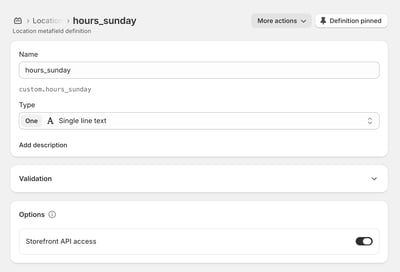
- Give the metafield a name (like “Hours Sunday”) and set the Namespace and key to the format hours_sunday. Reactiv looks for this exact naming pattern, so it is important to follow it.
- Set the Type to Single line text. This is required for Reactiv to read the value, and it lets you enter the hours as a time range (for example, “9:00 AM – 6:00 PM”).
- In the Access section, turn on the Storefront API toggle. This exposes the metafield so your Reactiv app can read it.
- Click Save.
- Repeat these steps for each day of the week, using the keys hours_sunday, hours_monday, hours_tuesday, hours_wednesday, hours_thursday, hours_friday, and hours_saturday. Each one should be Single line text and exposed to the Storefront API.
- Create one more metafield for the phone number using the key phone_number. It must also be Single line text and exposed to the Storefront API.
- Once the metafields are defined, open each of your locations in Settings, then Locations, and fill in the hours and phone number for each.
- Finally, in your Reactiv Dashboard, expose each of these metafields to Reactiv so they can appear on the Store Locator screen.
Reactiv Tip: Two things matter most here: the key format must be all lowercase with underscores (like hours_sunday, not HoursSunday or hours-sunday), and the Type must be Single line text. If either is off, Reactiv will not be able to read the value.
Once your locations are set up in Shopify with active status, physical storefront enabled, and the metafields filled in and exposed, you are ready to turn Store Locator on inside Reactiv.
How to Turn On Store Locator in Reactiv
Step 1: Add your Mapbox API key
The Store Locator uses Mapbox to display the map. You will need a Mapbox public access token (it starts with “pk.”) to get the map to show.
- Create a free Mapbox account at mapbox.com if you do not already have one. Mapbox is free for most small and mid-sized brands (up to 25,000 monthly active users).
- In your Mapbox account, create a public access token. Make sure it starts with “pk.” Do not use a secret token (those start with “sk.”).
- In your Reactiv Dashboard, go to workflows from the left side menu, then go to Settings, and finally find integration settings.
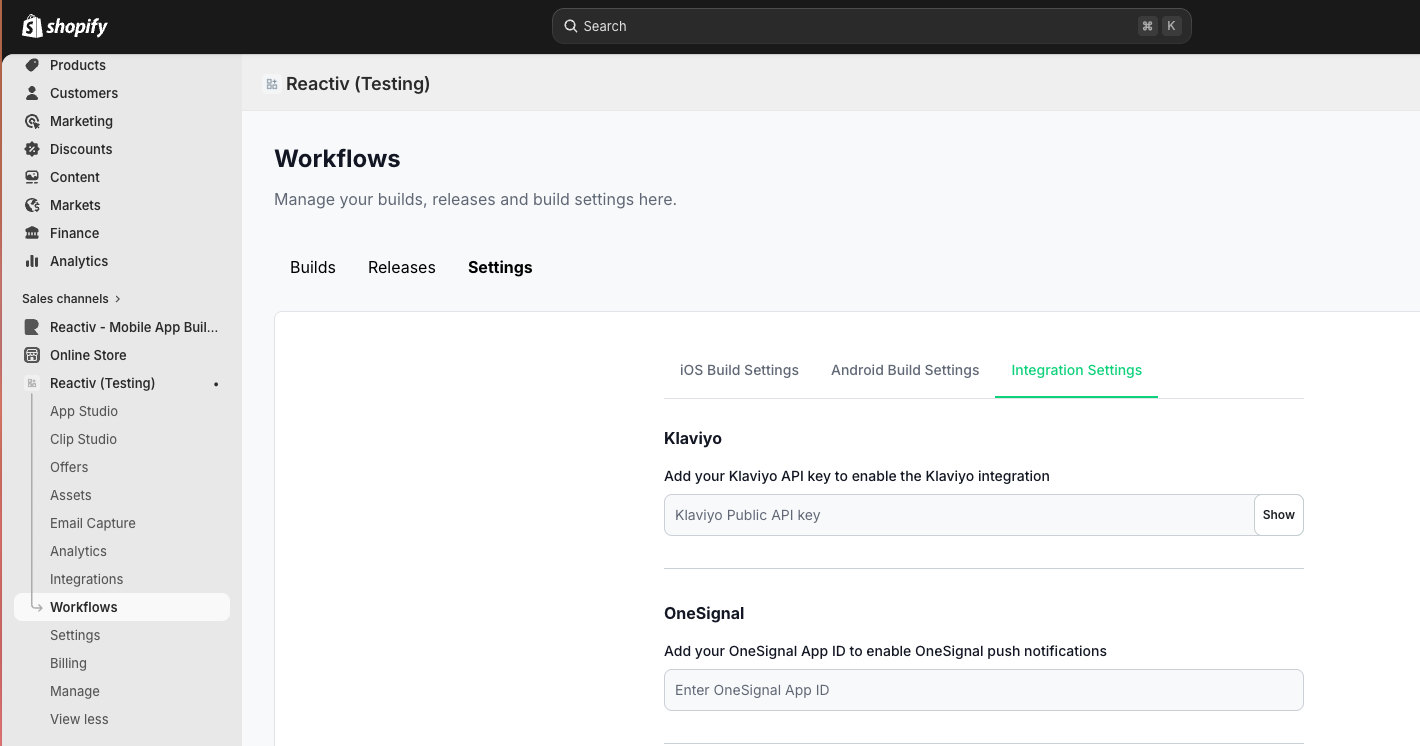
- Find the Mapbox card and paste your Mapbox public access token into the field and save.
Step 2: Turn on Store Locator in App Studio
- Sign into your Shopify store admin.
- Open Reactiv Dashboard by going to Sales channels, then Reactiv - Mobile App Builder.
- In App Studio, find the Store Locator setting and turn the toggle on.
- (Optional) Adjust the default search radius. This controls how far out the map will search for nearby stores. A good starting point is 25 miles or 40 kilometers.
- Your changes save automatically. The Find a Store tile will appear on your Account screen by default, and the Store Locator screen becomes available to link to from other places in your app.
Reactiv Tip: Preview on a real device if you can. The map and location services experience feels most natural when you can actually tap around on a phone.
Linking to Store Locator from Other Places in Your App
Once Store Locator is activated, the Find a Store tile appears on your Account screen by default. You can also link to the Store Locator screen from other spots in your app to help more shoppers find it:
- Home screen assets like carousels, banners, and image blocks can link directly to the Store Locator screen.
- The Mega Menu section can include a link to the Store Locator, so it shows up alongside your main categories.
- The Menu section (your simple nav menu) can also include a Store Locator link.
To add a link, open the asset or menu you want to use, choose the link destination, and select Store Locator from the list of screens. Shoppers who tap that asset or menu item will go straight to the Store Locator.
Reactiv Tip: A carousel banner with a message like “Visit us in person – find a store near you” makes a great Home screen callout for the Store Locator.
What Shoppers See
When a shopper opens the Store Locator screen, here is what they will experience:
- A map showing all your active physical store locations as pins.
- A list of stores below the map, with store name, address, hours, and phone number.
- If the shopper has turned on location services, the map will center near them and show the closest stores first.
- If the shopper has not turned on location services, the screen will show your top five stores so they still see something useful.
- Tapping on a store reveals full details and a button to get directions, which opens their device’s default maps app.
Reactiv Tips for Using Store Locator
- Keep your Shopify locations tidy. Archive locations you no longer operate so only current stores appear.
- Double-check your hours. Keep your Location Metafield hours up to date, especially around holidays and seasonal changes.
- Include all storefronts. If you have multiple retail stores, make sure every one is marked as a Physical Storefront and exposed to Reactiv.
- Use the Find a Store tile as a brand touchpoint. Shoppers who browse your app are often local fans. Helping them find you in person builds loyalty.
- Promote it in your marketing. Mention that shoppers can find your stores right in the app. It is a small but powerful reason to keep the app installed.
Frequently Asked Questions
I do not see the Find a Store tile on the Account screen. What is missing?
The tile only appears when the Store Locator is turned on and you have at least one eligible location. Check that the Store Locator toggle is on in App Studio, and that you have at least one Shopify location that is Active and marked as a Physical Storefront.
One of my stores is missing from the map. Why?
A store will not appear if it is not Active, is not marked as a Physical Storefront, or does not have a valid address in Shopify. Open the location in your Shopify admin and confirm all three are set correctly.
Store hours or phone numbers are not showing up. How do I fix this?
Hours and phone numbers come from Location Metafields on each location. Make sure the metafields are filled in, that their keys use the format hours_sunday (all lowercase with underscores), that their Type is set to Single line text, that they are exposed to the Storefront API, and that they are exposed to Reactiv in your dashboard. Missing any of these steps will cause the information not to appear.
Can I link to the Store Locator from somewhere other than the Account screen?
Yes. Once the Store Locator is turned on, you can link to it from Home screen assets like carousels and banners, as well as from navigation menus like the Mega Menu and the Menu section. The Find a Store tile on the Account screen stays on by default.
Why am I seeing a blank map or no pins at all?
A blank map usually means the Mapbox access token is missing or incorrect. Open Integrations in the Reactiv Dashboard, confirm your Mapbox token starts with “pk.”, and save it again. If the token is correct but you still see no pins, check that at least one Shopify location is Active and marked as a Physical Storefront.
Does Store Locator show how far away each store is?
At this time, the Store Locator does not show a specific distance for each store. Stores are ordered by proximity when the shopper has turned on location services, but the numeric distance is not displayed. This may change in a future update.
Does Store Locator tell shoppers if a store is open or closed right now?
Not at the moment. Hours are shown as a time range (like “9:00 AM – 6:00 PM”) so shoppers can see when you are typically open. A live open/closed status is not currently shown.
What if a shopper has not granted location permission?
No problem. If a shopper does not turn on location services, the Store Locator will still work. The screen will show your top five stores so the shopper always has something useful to see.
How much does Mapbox cost?
Mapbox is free for most brands. Their free tier covers up to 25,000 monthly active users. If your app grows beyond that, Mapbox has paid plans that scale with your usage.
Can I use Google Maps instead of Mapbox?
Right now, Reactiv’s Store Locator uses Mapbox. Mapbox offers a generous free tier and a reliable experience, so we have chosen it as the default for this feature.
Does Store Locator support pickup in store?
The Store Locator focuses on helping shoppers find your physical locations. Pickup in store is a separate Shopify feature that you can enable on each location in your Shopify admin. If you are interested in combining pickup with Store Locator, please reach out to Reactiv support.
Still Have Questions?
If you run into anything while setting up your Store Locator screen, our team is here to help. Reach out to Reactiv support and we will get you sorted.